


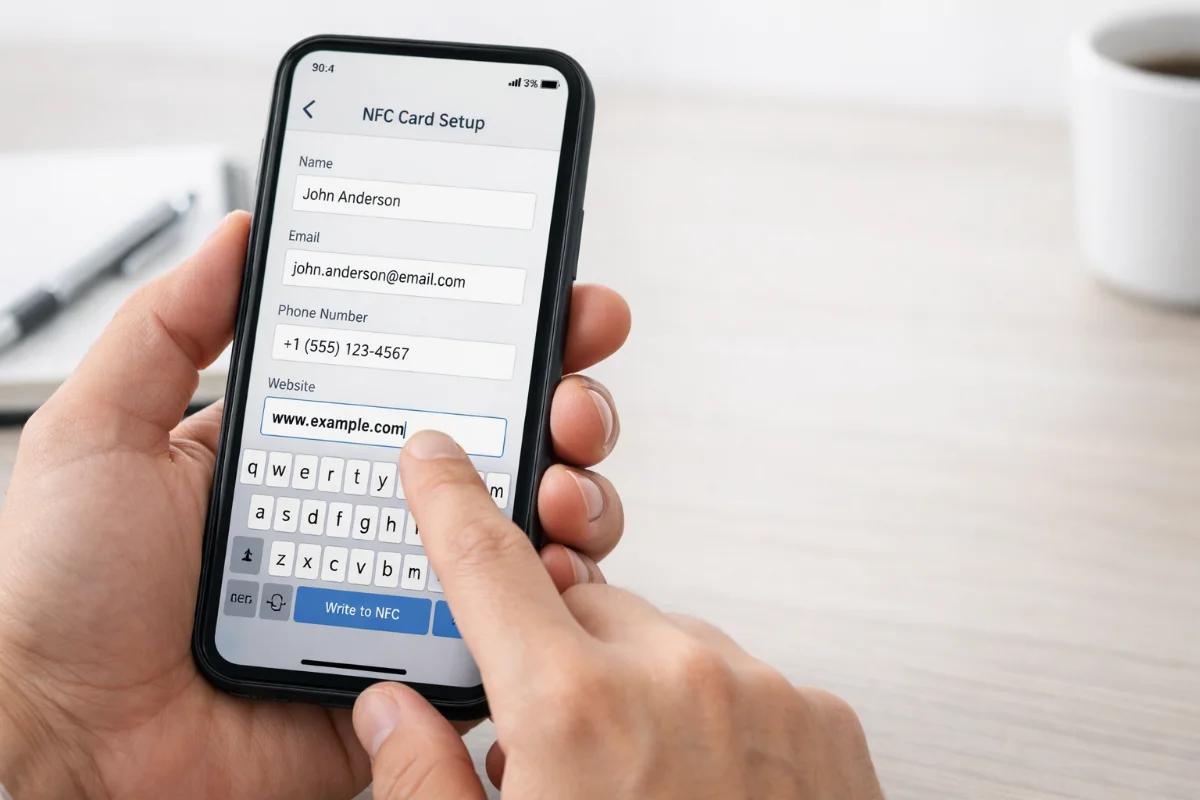
Activate NFC Business Card #
This guide explains how to activate, write, erase, and manage your NFC business card step by step.
No technical background is required.
1. Quick Start – How NFC Business Cards Work #
An NFC business card stores digital information such as:
-
A website link
-
A digital profile
-
Contact details (vCard)
To use the card:
Simply tap the NFC card to the back of a compatible smartphone.
If encoded correctly, the phone will automatically open the linked website or display the saved contact details.
Most modern Android and iPhone devices support NFC.
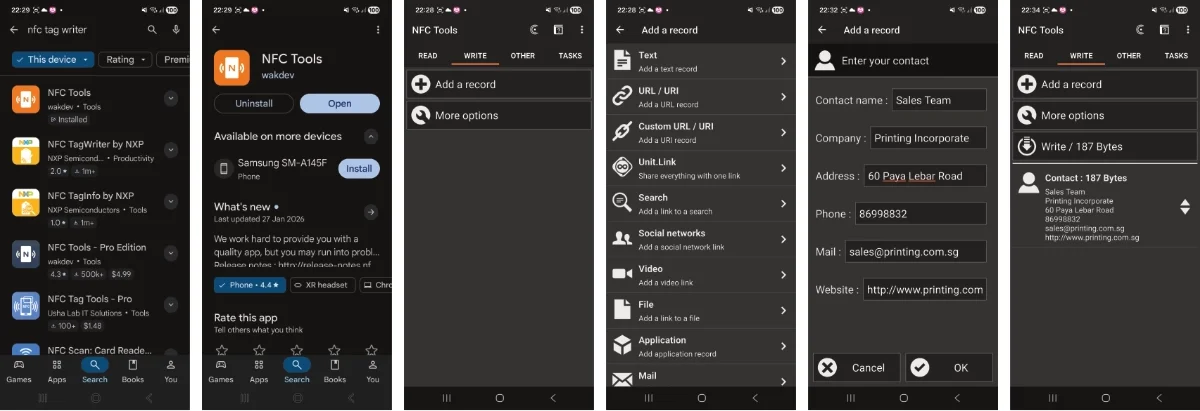
2. Download an NFC Writer App #
If your NFC card has not been programmed yet, you will need to encode it.
Step 1:
Download a free NFC writer application from:
-
Apple App Store
-
Google Play Store
Search for “NFC writer” or “NFC tools”.
Install and open the app.
3. How to Write a Website or Digital Profile Link #
Most users encode their NFC card with a website or digital profile link.
Follow these steps:
-
Open the NFC writing app.
-
Select “Write Tag”.
-
Choose the “URL” or “Link” option.
-
Enter your website address or digital profile link.
-
Double-check the link to ensure it is correct.
-
Tap and hold your NFC card to the back of your phone.
-
Wait until the app confirms writing is successful.
Your NFC card is now activated.
4. How to Write Contact Information (vCard) #
You may also store contact details directly on the NFC card.
Steps:
-
Select the “Contact” option in your NFC writing app.
-
Enter your name, phone number, email, and other details.
-
Review all information carefully.
-
Select “Write Tag”.
-
Tap and hold the NFC card to your phone until writing is completed.
When someone taps your card, your contact information will appear and can be saved directly to their device.
5. How to Erase and Rewrite an NFC Card #
If you need to update your card:
-
Open your NFC writing app.
-
Select “Erase Tag”.
-
Tap the NFC card to your phone.
-
Wait for erase confirmation.
You can now rewrite new information.
6. Updating Your Digital Profile #
If your NFC card links to an online digital profile:
You do not need to rewrite the card when updating information.
Simply log in to your profile dashboard and update your details.
Changes will be reflected instantly.
7. Troubleshooting #
NFC Card Not Detected #
-
Ensure NFC is enabled in phone settings.
-
Tap the card to the back center of the phone.
-
Hold steady for 2–3 seconds.
Writing Failed #
-
Ensure card is blank or erased.
-
Keep card steady during writing.
-
Try repositioning the card.
iPhone Cannot Open Contact (vCard) #
Some iPhone models may require an NFC app to open contact files.
Website links will open normally in the browser.
Need Further Assistance? #
If you encounter any issues, please contact our support team with:
-
Your phone model
-
The NFC app you are using
-
A screenshot of the error message
We’ll be happy to assist you.
Frequently Asked Questions (Technical) #
Why is my NFC card not detected? #
Ensure NFC is enabled in your phone settings.
Tap the card to the back center of the phone and hold it steady for 2–3 seconds.
Some phones require precise positioning.
How do I check if my phone supports NFC? #
Most modern Android and iPhone models support NFC.
You can check in your phone settings under “Connections” or “NFC & Contactless Payments.”
If the NFC option is not available, your device may not support NFC.
Can I rewrite my NFC business card? #
Yes.
You can erase the NFC tag using an NFC writing app and then write new information at any time.
Can I store multiple links on one NFC card? #
Most NFC tags are designed to store a single primary link.
If you need multiple links, consider using a digital profile page that contains all your links in one place.
Why does writing fail during encoding? #
Common reasons include:
-
Card not properly erased
-
Phone moved during writing
-
NFC disabled
-
Card incompatible with the app
Ensure the card is held steady until writing confirmation appears.
Why can’t iPhone open my contact (vCard)? #
Some iPhone models require an NFC app to open contact files directly.
Website links will open normally in the browser.
Where is the NFC reader located on my phone? #
For most phones, the NFC reader is located near the top back area of the device.
Try adjusting the card position slightly if it is not detected immediately.
Buy NFC Business Cards in Singapore #
If you have not purchased your NFC business card yet, explore our premium NFC Business Card printing options designed for modern professionals.


